

The Bybit sign-up process can be understood in this order: check your country of residence and eligibility → verify your email or phone number → set up your login method → check KYC and account security. If you plan to use a referral code, check the code you intend to enter and the terms shown on the sign-up screen before creating your account. Account creation, identity verification, code linkage, and actual fee application are separate checkpoints; signing up alone does not guarantee a discount or reward.
Sign-up, code, and regional guidance rechecked: 2026-10-24 (Korea time); previous verification date for KYC, security, and fee documents: 2026-10-04 · Edited by CoinPop. Prepared based on official help materials. The actual buttons and available features may vary depending on app version, region, and account status. This article covers the sign-up process for a new account. For an overview of the exchange, see Bybit comprehensive guide.
How we verified this: We cross-checked the web and app tabs in the official sign-up help with the KYC, security, fees, regional restrictions, and Affiliate code documents. This is not a first-hand account of opening a new account, submitting an identity document, or making a deposit or trade. The image below is an explanatory diagram by CoinPop summarizing the checkpoints; it does not copy or recreate an actual sign-up screen.
Affiliate and risk disclosure: CoinPop may receive a commission if you sign up or trade through a CoinPop affiliate link. A link or code does not guarantee a specific discount rate, application period, or reward; the current sign-up screen and the actual terms for your account take precedence. Cryptocurrency carries a risk of loss of principal, and leveraged trading carries a high risk of liquidation. This guide does not recommend signing up or trading, nor does it guarantee returns.
Three things to decide before signing up
- Do you need a new account? If you already have an account, check your existing login method and account information rather than signing up again. Duplicate sign-ups to change a code, or reusing identity information, are not solutions.
- Is the service available in your current region? Check the terms for your actual country of residence and nationality, as well as the service-providing entity. Being able to access the service does not mean you are eligible to use a particular product.
- Will you be able to access your verification methods after signing up? Prepare an email address, phone number, and recovery method that you control. Do not let someone else handle verification or share verification codes.
The official restricted countries and regions document explains excluded regions and measures related to false location or residence information. Do not bypass restrictions using a VPN, selecting a false country, or using someone else’s identity document. If the app does not appear in the app store, first check whether it is available in your region. This article does not provide a legal determination about registration or authorization in Korea, or whether all products are permitted for Korean residents. For regulations and deposit and withdrawal terms related to Korea, also read What to check about Bybit terms for users in Korea. If the app does not appear, first check official app access and APK security precautions, but do not use APK installation to bypass regional restrictions.
Comparing the sign-up process on PC and mobile
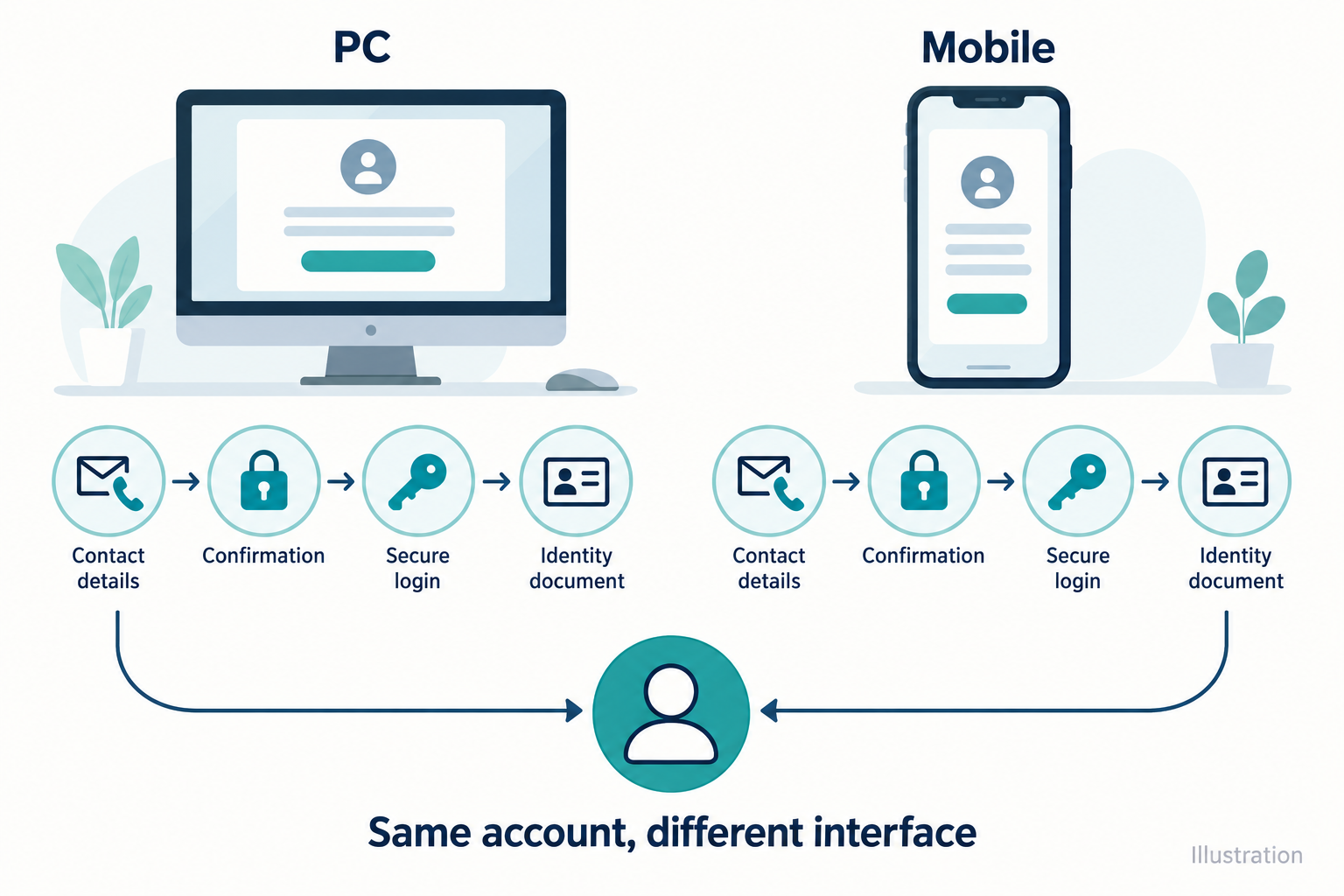
| Step | PC web | Official mobile app |
|---|---|---|
| Sign-up screen | Sign Up on the homepage | Sign Up/Log In or Sign Up in the profile |
| Region check | Select your actual country of residence, then check restrictions and regional site guidance | |
| Contact details and code | Enter an email address or phone number; if you plan to use a code, check it before completing sign-up | |
| Verification | Complete the security check on screen and verify by email or SMS | |
| Login method | Set a password after verification | Add a Passkey on a supported device or choose to set a password |
| After sign-up | Check KYC status, account security, and actual applicable terms separately | |
This comparison cross-checks the web and app tabs in the official Bybit sign-up help. Use an official app access route available in your region. If the order shown differs, follow the latest on-screen guidance; the key is not to put off checking the code.

Go straight to the procedure you need: 5-step PC web sign-up · 5-step mobile app sign-up. The steps below are an editorial grouping to help readers consider actions and confirmation results together, not a literal count of steps on the official screen.
How to sign up for Bybit on PC web: 5 steps covering actions and confirmation results
- Open Sign Up on the official website and read the regional guidance. Select your actual country of residence. If you are prompted to switch to a regional site or shown a restriction notice, check the terms first. Confirmation before proceeding: You have checked the sign-up terms presented for your current region and the contact-entry screen. If a restriction is shown, do not continue by arbitrarily selecting another country.
- Check your email or phone number and the code you plan to use. Use contact details you will continue to have access to, and check whether a code from an affiliate link was entered automatically. Confirmation before proceeding: Before completing sign-up, you have checked for typos in the contact details, the code’s spelling, and the terms shown on screen. The fact that a code was entered does not confirm that a discount will apply.
- Complete the on-screen security check and verify by email or SMS. Enter the verification code you received on the official screen that you opened yourself. Confirmation before proceeding: You have passed contact verification on screen and the next step is displayed. If the code does not arrive, check the details you entered, your spam folder, and resend conditions; do not ask someone else to verify for you.
- Set your account password as instructed. Use a password you do not share with other services, and note which contact details or login method you will use to access the account later. Confirmation before proceeding: A sign-up completion notice or account dashboard is displayed. Completion at this point confirms account creation, not KYC or withdrawal approval.
- Check KYC and account security separately after signing up. Review your account information, identity verification result, 2FA, and recovery methods. Confirmation before proceeding: You can distinguish which of account creation, verification, and security setup are complete and which are still pending. Check eligibility for actual products and applicable fees separately on the latest screen for your account.
How to sign up for Bybit on the mobile app: 5 steps, including what differs from web
- Open the official app available in your current region and go to the sign-up screen. The official help guide directs users to Sign Up/Log In or Sign Up in the profile. If you land on the login screen, select Sign Up. Confirmation before proceeding: You have distinguished between logging in and creating a new account. If you cannot confirm that the app is available, do not bypass this by using an unofficial installation route.
- Check your country of residence, contact details, code, and on-screen terms. Read the guidance for your actual country of residence and enter your own email address or phone number. Confirmation before proceeding: If you need a code, you have checked whether it was entered and reviewed the terms before completing sign-up. If you choose to link an external account, it is a good idea to record which linked account you used so you can use it to log in later.
- Complete the security check and contact verification. Enter the email or SMS verification code as instructed on screen. Confirmation before proceeding: After verification is complete, you have moved on to the login method setup step. Verification requests from other people or requests in messaging apps to forward a verification code are unrelated to this process.
- Set up a Passkey or password on a supported device. The official app guide explains the Add Passkey and Set Up Password Instead options. Confirmation before proceeding: You understand the login method you selected and the recovery options if your phone is replaced or lost. If Passkeys are not supported or setup fails, check the password option on screen; do not assume the same menu appears on every device.
- After completing sign-up, check KYC, security, and your actual account terms. Even after seeing the sign-up completion notice, identity review and product-specific terms are separate. Confirmation before proceeding: You are ready to check account status, KYC results, security settings, and actual rates separately. Do not assume all products or benefits apply simply because the account appears in the app.
If you get stuck at a step: First identify whether you are at the contact details, verification, login method, or KYC stage. Rather than returning to the sign-up screen to repeat the process from the beginning or creating a new account, first check the relevant item in the troubleshooting table below and the official support guidance.
Checkpoints that are easy to miss on the sign-up screen
1. Check the official address and login method first
Do not rely solely on search ads or links in messaging apps; check the address you landed on and the site name. Keep a record of whether you started on the web or in the app, and whether you signed up using a regular email address or linked an external account. This can help prevent you from logging in later with a different method and mistakenly thinking your account has disappeared.
2. Keep code entry separate from benefit confirmation
A code being entered and the discount terms applying are two different things. Before completing sign-up, check the code’s spelling and spacing, whether it was entered automatically, and the eligible products, period, and requirements shown on screen. If the terms are not visible, do not deposit or trade expecting a fixed discount rate; check the official guidance first.
The CoinPop affiliate link can be found on the registration screen and current terms. Simply opening this link does not complete account creation or apply any benefits. If you cannot verify the actual terms on the screen, there is no reason to rush into registering.
3. Check which screen to enter the verification code on
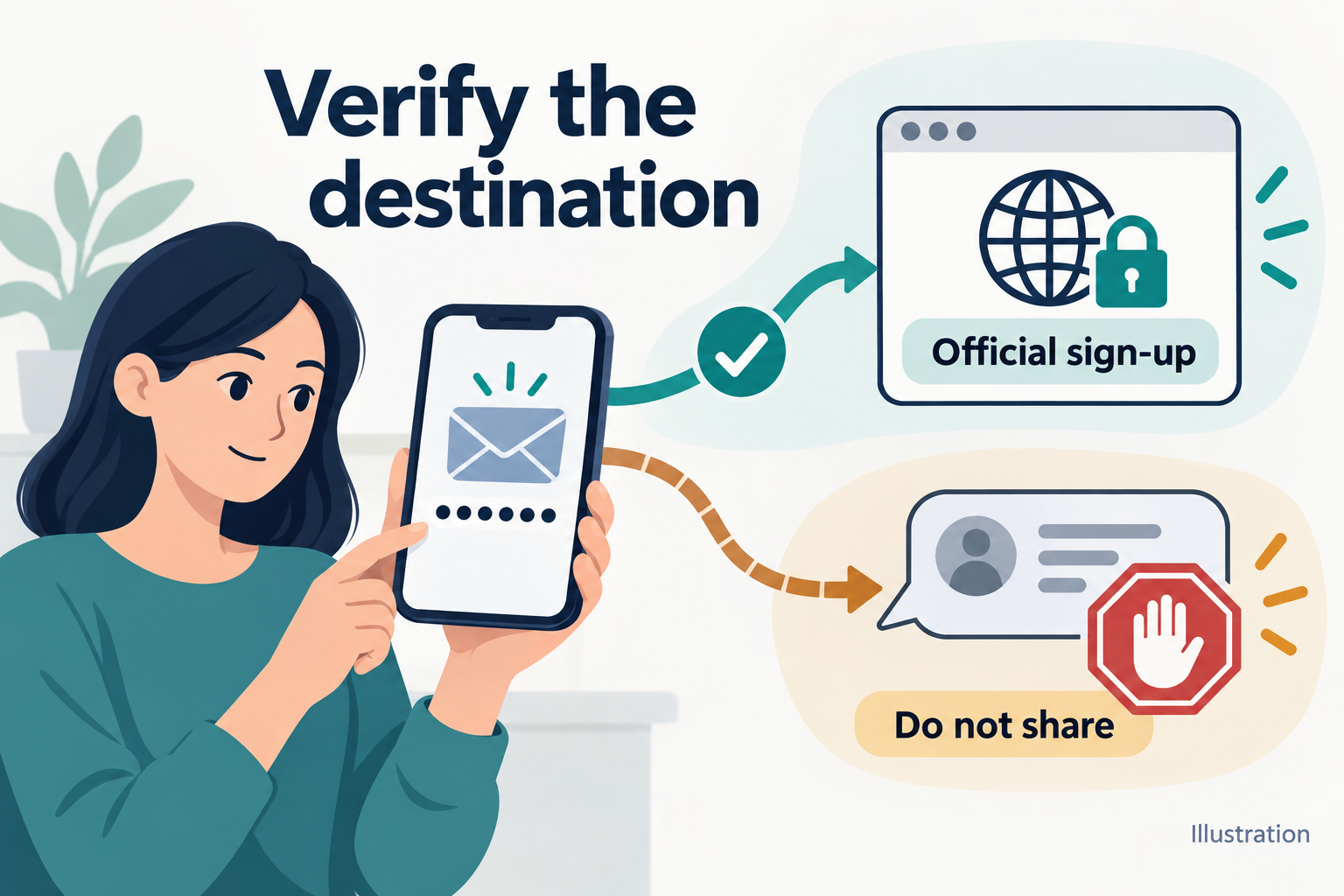
Use email or SMS verification codes only on the official registration screen that you initiated. Never send a verification code or password to anyone claiming to be customer support, an administrator, or an affiliate representative. If you do not receive a verification email, first check the address you entered and your spam folder, and follow the resend limits shown on the screen.
4. Set up your login and recovery methods together
If the Passkey option is available in the mobile app, check whether your device supports it and review the recovery options. If you use a password, choose one that you do not reuse on other sites. Whichever method you choose, it is important to check that you can still access your account if your phone is replaced or lost.
Completing registration is not the same as completing KYC

KYC is the process by which an exchange verifies your identity. The official Individual KYC FAQ explains that at least Standard verification is required to use the service, and that higher levels of verification may be required depending on your region and product. Do not interpret an account creation notification as approval to use products or make withdrawals.
Prepare your own valid original identity document as required by the current verification screen, and check the requirements for document type, name, nationality, and other details. The official FAQ states that, as a general rule, each person may have one KYC-verified account. If an account has already been verified using the same identity information, check the process for recovering the existing account or contacting official support instead of repeatedly registering new accounts. No specific time for completing the verification review is guaranteed.
Four things to check right after registering and before depositing

| What to check | Evidence to check | What to do if you cannot verify it |
|---|---|---|
| Account | Your login information and account identification details | First check for another login method or another account |
| Identity and eligibility | KYC result and regional and account restrictions for the relevant product | Do not assume you are eligible to use it |
| Security | The 2FA, recovery methods, and known devices you set up | First review your account security |
| Fees and benefits | Actual rates and campaign terms for your account | Do not assume that entering a code alone guarantees a discount or reward |
Bybit explains Google 2FA, Passkey, anti-phishing codes, and trusted device management in its account security guide. Protect the email account linked to your exchange account as well, and do not share recovery information with anyone else. Using multiple security features does not eliminate the risk of exchange incidents or asset loss.
After completing KYC, check your actual trading fees under My Fee Rate in your account. The official fee structure document also notes that actual rates may vary by region. Base rates, VIP, MNT, funding fees, and calculations are covered separately in the Bybit Fee Details Guide.
If you are considering making an actual transfer after checking your account, security, and eligibility, first read How to Check Networks, Addresses, and Tags for Deposits and Withdrawals. Registration and asset transfers are separate procedures, and assets sent using the wrong network or tag may be difficult to recover.
If you need instructions for placing a futures order, first check your regional and product eligibility, KYC, and security requirements, then refer to the Bybit Futures Order, Stop-Loss, and Position Closing Guide. Completing registration does not mean that futures trading is necessary or suitable for you, and leveraged trading involves the risk of liquidation and loss of principal.
If you encounter a problem during registration
| Situation | What to check first | What to avoid |
|---|---|---|
| Contact information already registered | Existing account and login and recovery methods | Repeatedly registering duplicate accounts to change a code |
| Verification email or SMS not received | Entered information, spam folder, and the screen’s resend conditions | Sharing a verification code with a third party |
| Country or product restriction notice | Official regional policies and current account eligibility | Bypassing restrictions with false residence information, a VPN, or similar means |
| KYC rejected or additional review required | Reason for rejection, required documents, and any existing verified account | Submitting someone else’s ID or an altered document |
| Code not displayed | Code entry screen before completing registration and official support instructions | Guessing whether the code was linked or benefits applied |
Frequently asked questions
What do I need to prepare to register for Bybit?
For basic registration, prepare an email address or phone number that you manage, along with a verification method you can access. If you plan to use a referral code, check the code and the terms shown on the current screen before creating your account. KYC after registration requires your own valid identity document as specified on the verification screen; contact verification and identity document verification are separate.
Should I register by email or phone number?
The official registration help recommends registering by email. However, the first thing to check is whether you will continue to be able to access and recover the contact method. If you choose to register by phone or link an external account, keep track of the number, linked account, and login method you actually used. Avoid confusing an existing account with a new one by logging in using a different method.
Is it better to register for Bybit on a PC or mobile device?
Choose whichever method makes it easier for you to check the official registration path and entry requirements. A PC makes it easier to compare instructions and terms, while the app makes it easier to set up your device’s login method. Neither option lets you skip checking KYC, regional requirements, or fees.
Does entering a referral code guarantee a fee discount?
No. You need to distinguish between whether a code was entered, the affiliate relationship, campaign eligibility, applicable products and period, and your actual account rate. This article does not promise a fixed discount rate or reward amount. Check the terms on the registration screen, then compare them with your actual account rate after registering.
Can I add or change a code after registering?
You need to distinguish between adding or changing a regular referral code and the conditional post-registration process for Affiliate codes. General registration help says that a code cannot be added or changed after account creation, but the dedicated document for adding an Affiliate code describes an application process for main accounts that apply within 14 days of registration and have no existing Affiliate or referral relationship. This process applies only to Affiliate codes, not regular friend referral codes, and applications may be restricted depending on regional and account requirements. It also does not let you replace a code you have already registered with a different one. Since the two official documents cover different cases, do not interpret this as a guarantee that you can register a code after the fact; check your current account screen and contact official customer support. For detailed terms and issues involving existing accounts, see the Referral Code and Account Security Guide.
Can I trade or withdraw as soon as I complete KYC?
A KYC result alone does not guarantee approval for every product or withdrawal request. Check your account status, regional requirements for each product, security requirements, and any restrictions shown on the withdrawal screen. Do not confuse registration or verification completion notifications with confirmation that you can actually use the service.
Official sources and update criteria
- How to Register an Account — Web and app registration process; official page states it was updated on 2026-08-17.
- Service Restricted Countries — Regional restrictions; official page states it was updated on 2026-10-16; rechecked on 2026-10-24.
- FAQ — Individual KYC — Verification requirements and account policies; official page states it was updated on 2026-08-20.
- How to Enhance the Security of Your Account — Security features; official page states it was updated on 2026-05-23.
- Bybit Trading Fee Structure — Criteria for checking actual account rates; official page states it was updated on 2026-09-02.
- How to Add and Check Registered Affiliate Code — Instructions for conditional code addition; official page states it was updated on 2026-06-05. Guidance that conflicts with general registration documents is identified as uncertain in the main text.
Source update dates are the dates shown on the documents; the time zone has not been separately confirmed. CoinPop’s final verification date is based on Korea Standard Time. If actual policies, menus, or benefits change, only the relevant sections will be updated as needed. This document does not register an account on your behalf or determine your individual eligibility to use the service.

